
For Microsoft 365 and iPhoneSee how it works

See who is calling before you answer

Enterprise Contacts puts your company’s Microsoft 365 directory in the iPhone’s own Contacts app, so every colleague shows up by name in Phone, Mail, Messages and Teams.

  • Free for any Microsoft 365 tenant
  • No per-user price or credit card
  • No MDM
  • About 10 minutes to set up

Your IT team turns it on first. Not in IT? Here’s what to send them.

Microsoft 365 knows every colleague. Your iPhone doesn’t.

Outlook and Teams have the whole Global Address List. The iPhone’s own Contacts app, where Phone, Mail and Messages look things up, has none of it.

For everyone with a work iPhone

Today

  • Calls from colleagues and company contacts arrive as bare numbers
  • You look people up in Teams before you can call or email them

With Enterprise Contacts

  • A name and title on calls from colleagues, shared company contacts and your own Exchange contacts
  • Colleagues autocomplete in Mail and Messages
For the IT team

Today

  • CSV exports and PowerShell scripts someone has to keep running
  • New starters and leavers never reach the phones

With Enterprise Contacts

  • One setup in Entra ID, with no MDM and no per-device work
  • Joiners and leavers usually reach phones within about 30 minutes
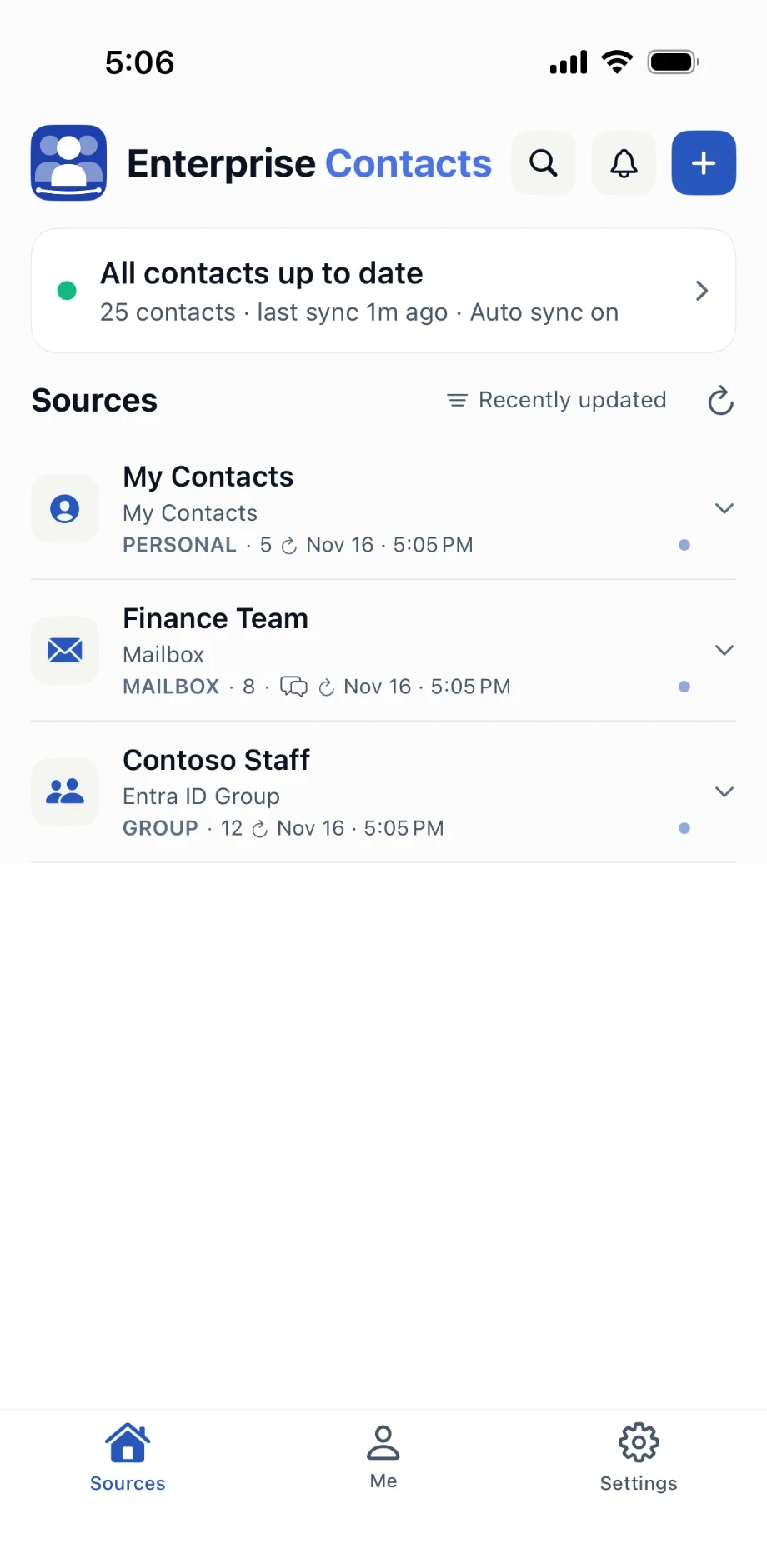
The Enterprise Contacts iPhone app showing all 25 contacts up to date, synced from three sources: My Contacts, the Finance Team mailbox and the Contoso Staff Entra ID group

How it works

Your directory, in the Contacts app, kept current

  1. IT picks the sources

    Entra ID groups, shared Exchange mailboxes or each user’s own contacts, chosen in the Web Admin.

  2. Staff sign in once

    With their normal work account. Their sources appear from their group membership; there is nothing to configure on the phone.

  3. Contacts stay current

    The app syncs in the background about every 2 hours and publishes contacts through Apple’s ContactProvider framework, so they live in the system Contacts app, encrypted on the iPhone, with no contact server in between.

One setup, two halves

Contacts reach a phone when both halves are done: IT turns Enterprise Contacts on for the tenant, and each person installs the app and signs in. Neither works without the other.

Hands typing on a laptop at a desk

Part 1 · IT admin

Turn it on for the tenant

  • Six steps in Entra ID and the Web Admin, about 10 minutes
  • Choose which contacts each group of people gets
  • Send staff the App Store link, or push the app with Intune
A finger tapping the screen of an iPhone on a white table

Part 2 · everyone with a work iPhone

Install the app and sign in

  • Free on the App Store, for iOS 18.2 or later
  • Once IT has turned it on, sign in with your work account; your contacts appear after the first sync
  • Before that, choose demo mode in the app to look around

Set up in about 10 minutes

Six steps for a tenant admin, the same six as the setup guide, about 10 minutes in all. After that, it is group membership in Entra ID.

  • Role: Global Administrator
  • MDM: not required
  • Phones: iPhone, iOS 18.2+
  • Device setup: none
  1. 1

    Grant consent for the iOS app

    Sign in as Global Administrator and accept six delegated, read-only Microsoft Graph permissions. Users in the tenant can then sign in to the app.

    About 1 minute

    Grant iOS app consent
  2. 2

    Consent to the Web Admin

    Open the Web Admin and grant tenant consent once. It is where you create and manage the source groups.

    About 1 minute

    Open the Web Admin
  3. 3

    Lock the Web Admin down

    Give your admins the Portal.Admin role, then set Assignment required, in that order. Until then anyone in the tenant can change source groups.

    About 3 minutes · required

    How to lock it down
  4. 4

    Create source groups

    In the Web Admin: a group suffix, the source type and its IDs, then save. The configuration goes into the group’s description in Entra ID.

    About 3 minutes per source

    How sources work
  5. 5

    Add users to the groups

    In Entra ID: users, security groups or Microsoft 365 groups, nested groups included. Your All Employees group covers most of the company at once.

    About 1 minute

    How to add users
  6. 6

    Send staff the App Store link

    By email, Teams or your intranet, or push the app with Intune or Apple Volume Purchasing. Staff sign in and their contacts appear after the first sync.

    About 1 minute to send; the first sync takes a few minutes per phone

    Open the App Store page

Easy to say yes to

€0

Free for any Microsoft 365 tenant. No per-user price, no caps, no credit card.

Read-only

Six delegated Microsoft Graph permissions, no write access. See the security documents

On the phone

Contacts go straight from Microsoft 365 to the iPhone, encrypted with iOS Data Protection. Usage counts stay in the EU.

Portrait of Thomas Starup

Built and run in Denmark by Thomas Starup, who wrote it because his own contacts never reached his iPhone.